Welcome to the Frisco eMAR system! This guide will walk you through the essential features for safe and efficient medication administration, stock management, and compliance tracking. Following these steps will ensure accuracy, accountability, and better care.
1. Medication Administration
This module is for recording the administration of medication to clients. Accuracy is critical.
How to Log a Medication Administration:
- Navigate to the Client's Profile: From the main dashboard, select the client who is receiving the medication.
- Select the ‘MAR’ Tab: This will open the eMAR section for the selected client.
- Add New Medication Order (If Not Already in Frisco System): If this is a new prescription, it must be added to the system before you can log an administration. Click on the + sign button to add a new medication button. This will open the form below.
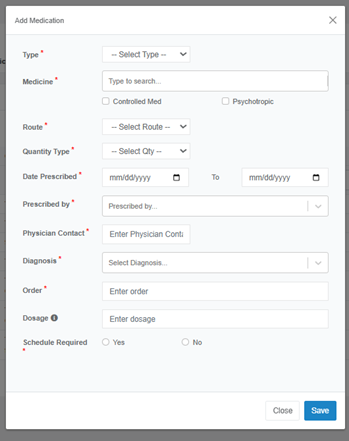
Fill out the form with the information from the doctor's order:
- Type: Select the medication type (e.g., Chronic, PRN).
- Medicine: Type the name of the drug. Check the boxes if it is a Controlled Med or Psychotropic.
- Route: Select the route of administration (e.g., Oral, Topical, Injection).
- Quantity Type: Select the unit of measure (e.g., tablet, mg, ml).
- Date Prescribed: Enter the start and end date for the prescription.
- Prescribed by: Select the prescribing physician from the list.
- Physician Contact: Enter the contact number for the physician.
- Diagnosis: Select the related diagnosis for this medication.
- Order: Transcribe the doctor's order exactly as written (e.g., "Take one tablet by mouth twice daily").
- Dosage: Enter the specific dosage to be given at each administration (e.g., "1 tablet" or "10mg").
- Schedule Required: Select 'Yes' if this is a regularly scheduled medication. This will add it to the client's MAR schedule.
Click “Save” to add the medication to the client's profile.
- Select Medication to Administer: From the administration log or schedule, find the medication you need to give and click the icon with a hand and + on top button. A form will appear for you to fill in the details of the administration.
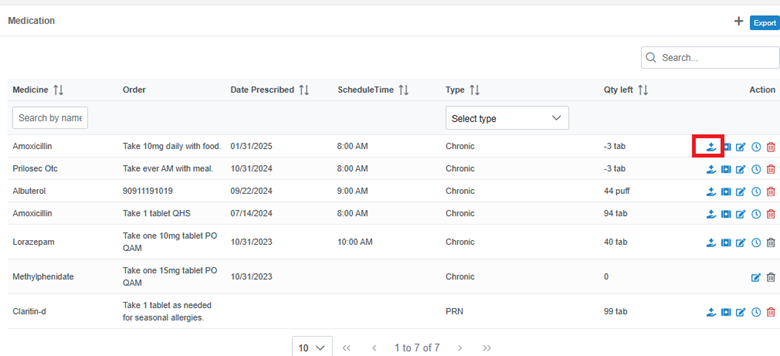
- Complete the Fields:
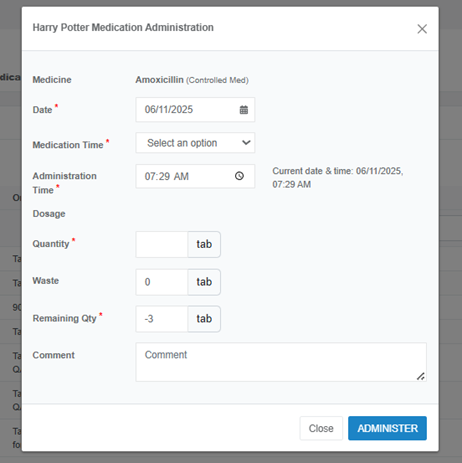
- Medicine Name: This will likely be pre-filled.
- Date: This will auto-populate with the current date.
- Medication Time: This is the scheduled time for the medication (e.g., 9:00 AM).
- Administration Time: This is the actual time you are giving the medication. The system will automatically record the current time.
- Dosage Quantity: Enter the number of units given (e.g., 1 tablet, 10 ml).
- Waste: If any part of the dose was wasted, record the quantity here. If there is no waste, enter '0'.
- Remaining Quantity: The system will automatically calculate the remaining stock.
- Comment: Add any relevant notes. Examples include "Client took with applesauce," "Client refused initially, took after encouragement," or "Complained of nausea after dose."
- Save the Record: Click "Save" or "Submit" to log the administration. The record will now appear in the client's "Medication Administration Log."
2. How to Add or Update Medication Stock:

- Navigate to 'Manage Stock': From the main menu or dashboard, select the blue box with + option.
- Complete the Medication Details:
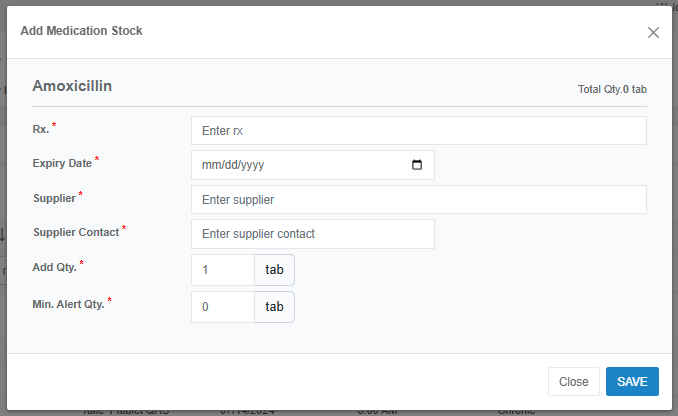
- Rx Name: Enter the full name of the medication (e.g., "Lisinopril 10mg tablets").
- Expiry Date: Select the expiration date from the calendar. The system will alert you when this date is approaching.
- Supplier: Enter the name of the pharmacy or supplier (e.g., "City Pharmacy").
- Supplier Contact: Enter the phone number or contact person for the supplier.
- Add Quantity: Enter the total number of units you are adding to the stock (e.g., if you received a box of 100 tablets, enter 100). The system will add this to the current total.
- Min. Alert Quantity: Set a threshold. When the stock level falls to this quantity, the system will trigger an alert, reminding you to reorder.
- Save Changes: Click "Save". The inventory levels and details will be updated in real-time.
3. Medication Administration Log (Reporting)
This powerful reporting tool allows the agency to track medication administration across all clients. It is essential for monitoring compliance, identifying potential issues, and conducting audits.
How to View and Export the Log:
- Navigate to the 'Medication Administration Log' or 'Reports' section: This is typically found in the main navigation menu.
- Filter the Data: You will see a comprehensive log of all administrations. Use the filters to narrow down the information you need. You can typically filter by:
How to Export a Medication Record:
- Find the 'Export' Button: Look for a button labeled "Export." This is usually located at left side corner MAR section.
- Download the File: The system will generate the file and your browser will prompt you to save it to your computer. This exported record is the official Medication Administration Record (MAR) and can be used for audits, family reviews, or hospital transfers.
Was this article helpful?
That’s Great!
Thank you for your feedback
Sorry! We couldn't be helpful
Thank you for your feedback
Feedback sent
We appreciate your effort and will try to fix the article