This guide will walk you through managing your agency's billing operations within Frisco. We'll cover everything from initial setup to submitting claims, including specific requirements for Medicaid and certain states.
Our Goal: To make your billing process smooth, efficient, and accurate.
1. Before You Bill: Essential Setup (Prerequisites)
To ensure successful billing, especially for Medicaid claims, your agency needs to have the correct identifiers entered into Frisco's billing configuration.
- For Agencies in Texas (TX) and Colorado (CO):
- You must have a National Provider Identifier (NPI).
- For Agencies in Wyoming (WY):
- You must have a Provider ID.
Action Required: Please double-check that these identifiers are correctly entered in your agency's billing settings within Frisco. This is crucial for Medicaid claim submissions.
Submitting Claims to Medicaid Through Frisco: A Step-by-Step Guide
Frisco makes submitting your Medicaid claims straightforward:
This guide will walk you through the process of submitting claims within the Frisco billing system. Follow these steps carefully to ensure your claims for services rendered are processed correctly.
Step 1: Ensure Encounter Note Creation
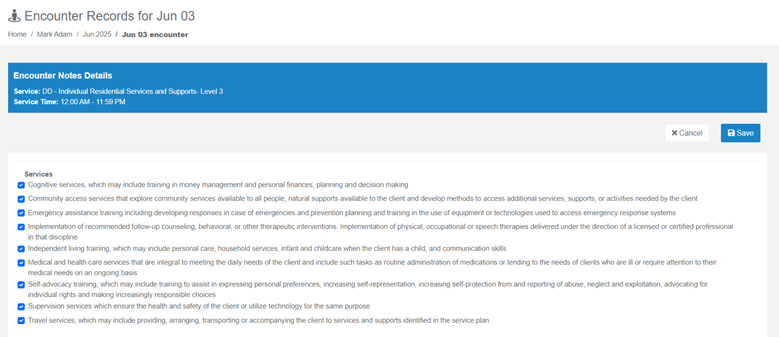
- Action: Before any billing can occur, an Encounter Note must be accurately created and finalized for the client interaction where services were delivered.
- System Response: Once the Encounter Note is complete, the Frisco system will automatically generate the associated claim.
Sample of a complete encounter note:
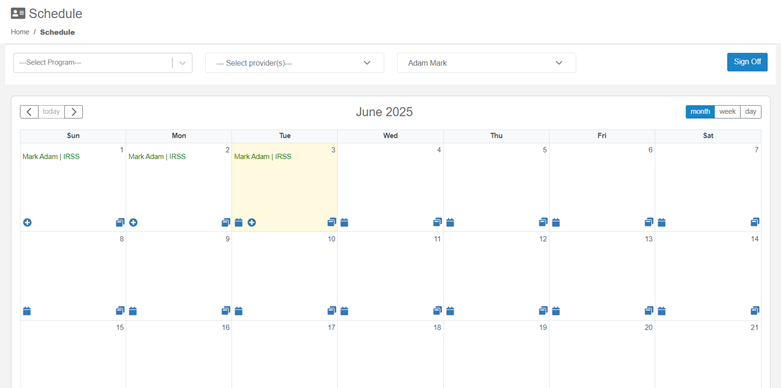
2. Schedule turns green from red.
Step 2: Navigate to the Billing Section and Locate "To Be Submitted" Claims
- Action:
- Log in to your Frisco system.
- Navigate to the main Billing section.
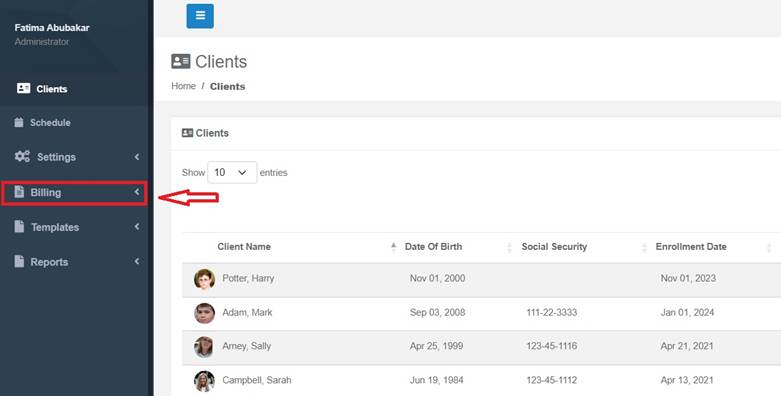
- Withing the billing section, you will see a list of all claims that has a complete encounter note.
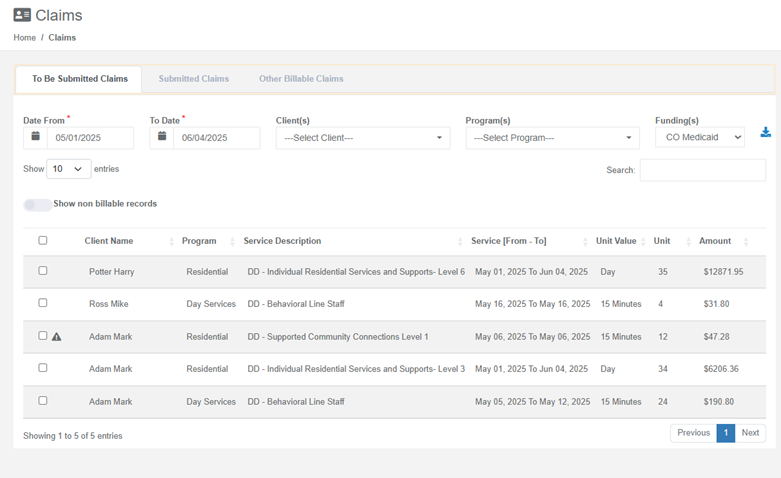
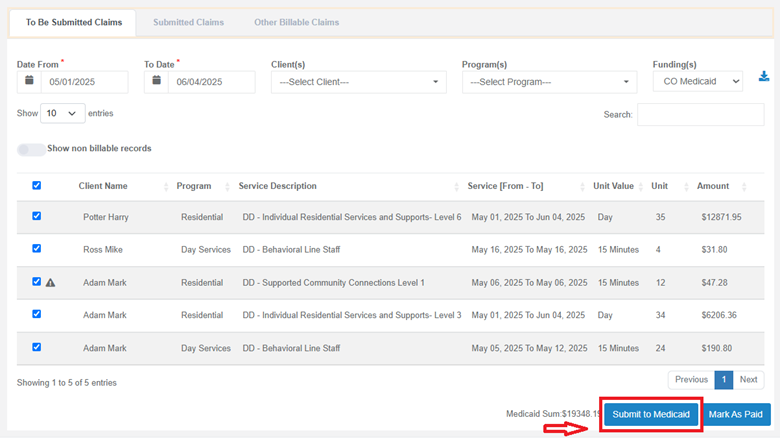
- You can adjust the date range according to your billing frequency (e.g., daily, weekly, monthly) and sort the information by clients or programs. Additionally, you can perform batch billing.
- Once all desired Medicaid claims are selected, locate and click the button typically labeled "Submit to Medicaid."
Step 6: Verify Claims in "Submitted Claims" and Monitor Status
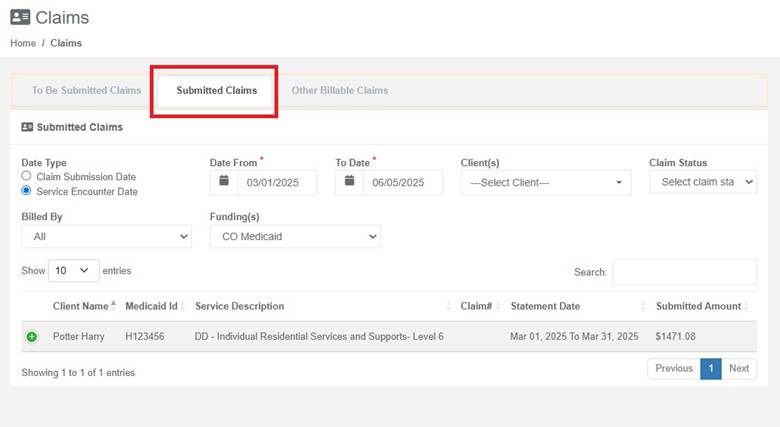
- The claims you just submitted will no longer appear in the "To Be Submitted" list.
- These claims will now be listed in the "Submitted Claims" section.
- Each submitted claim will have a status indicator (e.g., "Submitted," "Pending," "Acknowledged"). This status will update as the claim is processed by Medicaid.
Ongoing Action: Regularly check the "Submitted Claims" section to monitor the status of your claims and address any rejections or denials promptly.
This user guide provides the basic steps for submitting claims through Frisco. Always refer to specific Frisco support if you have detailed questions about the platform interface or advanced features.
Was this article helpful?
That’s Great!
Thank you for your feedback
Sorry! We couldn't be helpful
Thank you for your feedback
Feedback sent
We appreciate your effort and will try to fix the article