This guide provides step-by-step instructions on how to create a new service within the system. Properly setting up services is essential for accurate operations, billing, and compliance.
Step 1: Navigate to Settings and Manage Section
To begin adding a new service, you'll start from your dashboard.
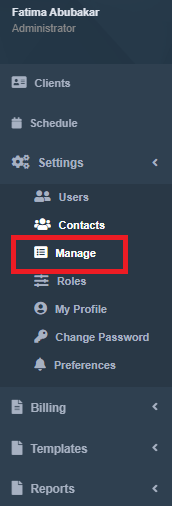
- From your dashboard, locate the "Settings" option on the left-side panel. Click on it.
- After clicking "Settings," find and click on "Manage" from the sub-menu that appears.
Step 2: Access the Services Section
Once you are in the "Manage" settings, you'll need to locate the "Services" section.
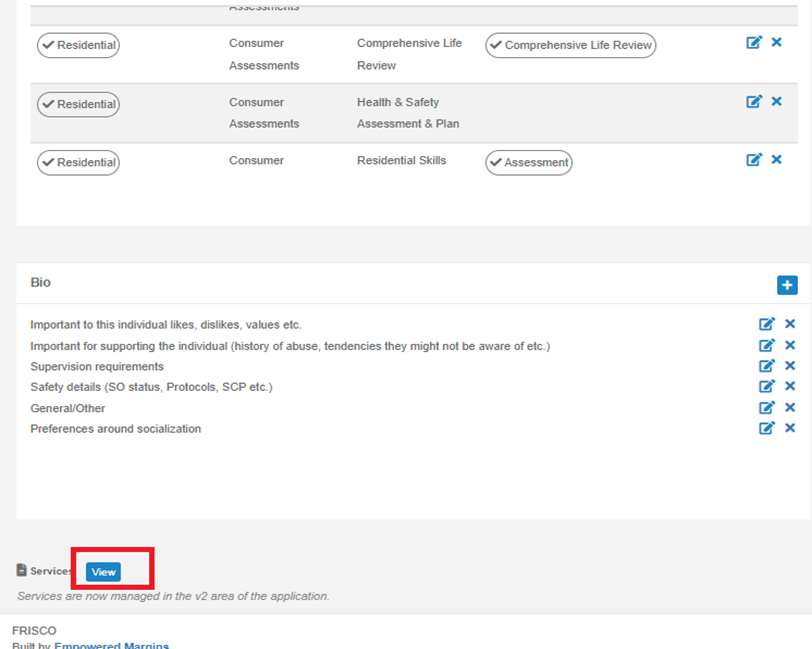
- On the "Manage Settings" page, scroll down to the bottom until you find the "Services" section.
- Within the "Services" section, click on the "View" button.
Step 3: Land on the Frisco 2.0 Services Page
Clicking "View" will redirect you to the dedicated services management page.
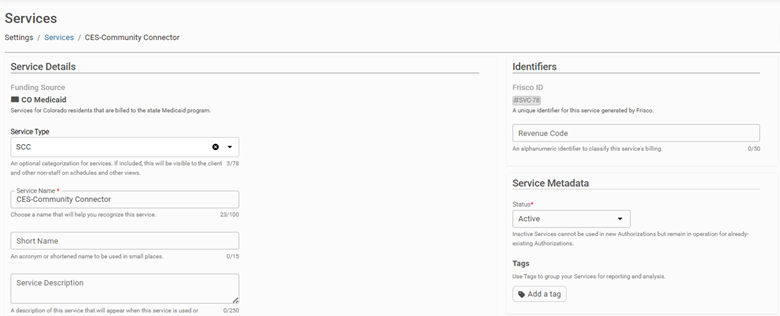
- You will now be routed to the "Frisco 2.0" page, specifically the "Services" section. This is where all your existing services are listed.
Step 4: Initiate New Service Creation
On the Frisco 2.0 Services page, you'll find the option to create a new service.
- Locate and click the "Create a Service" button. This button is typically positioned on the right-side corner of the page.
Step 5: Define Service Name and Funding Source
Begin by giving your service a name and associating it with a funding source.
- A new form will appear. In the designated field, "Create a name for the service," enter a clear and descriptive name (e.g., "Daily Living Assistance," "Therapeutic Visit").
- Locate the "Funding Source" field and select the appropriate funding mechanism for this service from the dropdown menu.
Step 6: Configure Basic Service Settings
This is a critical step where you define how the service will operate. Configure each of the following:
- Service Rate: Enter the standard monetary amount that will be charged for this service.
- Type of Service: Select whether the service is "hourly" (charged by time) or "visit-based" (charged per occurrence).
- EVV (Electronic Visit Verification) Status: Toggle this setting to enable if EVV is required for this service (commonly mandated for home healthcare services) or disable if not.
- Auto Encounter: Choose whether the system should automatically create an encounter record when this service is delivered. Enabling this simplifies documentation for caregivers.
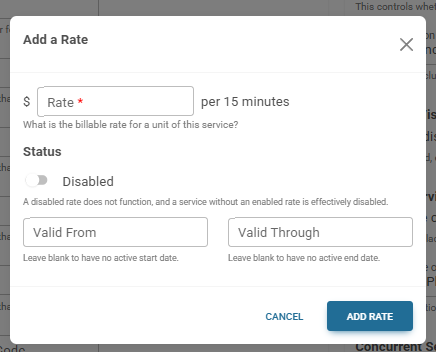
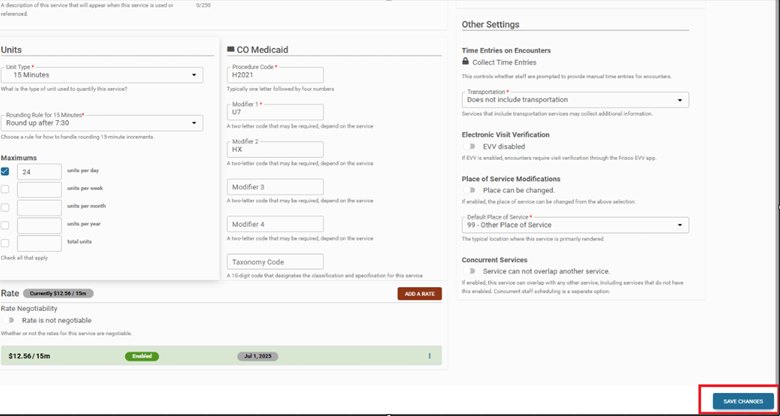
- Add a rate (rate of service, valid to and through): Click on the option to add a rate. Here you will define the specific rate for the service along with its "Valid To" and "Valid Through" dates to specify its active period. This allows for future rate changes or time-bound rates.
Step 7: Save Your Changes
Once all the configurations are accurately set, finalize the new service.
- Review all the information you've entered to ensure its correctness.
- Click the "Save Changes" button to create and add the new service to your system.
You have successfully added a new service! It is now available for use in scheduling, care planning, and billing.
Was this article helpful?
That’s Great!
Thank you for your feedback
Sorry! We couldn't be helpful
Thank you for your feedback
Feedback sent
We appreciate your effort and will try to fix the article