Follow the steps below to create and view an Incident Report in the system.
How to File an Incident Report
Click the “Incident” Icon
From your dashboard, click the Incident icon.
You will be routed to the Incident Report page.
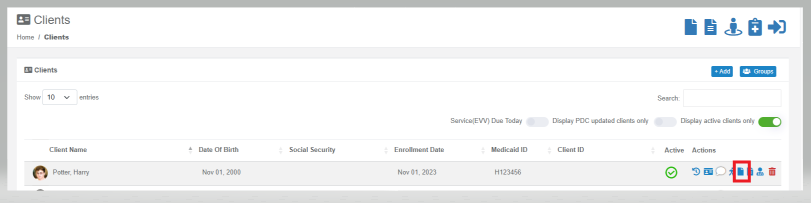
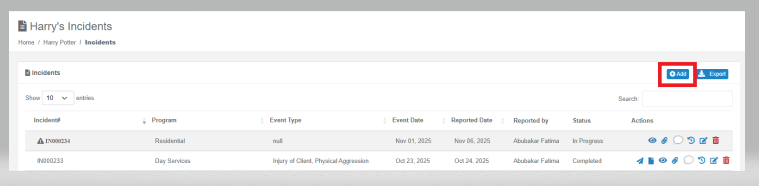
Create a New Incident Report
Click the “+” (Add) icon to start a new report.
Fill in all required information by clicking Next after each section.
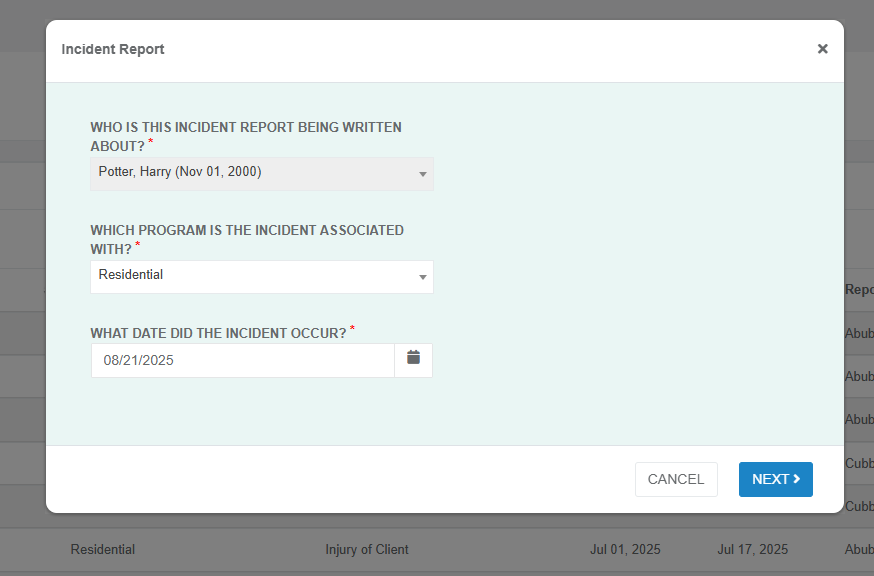
Once all information is entered, click Submit.
System Notification
After submission, a notification will automatically be sent to all Administrators, the Executive Director, and the Program Manager informing them that a new Incident Report has been created.
How to View an Incident Report You Created
You can access your submitted Incident Report in three ways:
From the Dashboard
Click the Incident Report icon aligned with the client’s name.
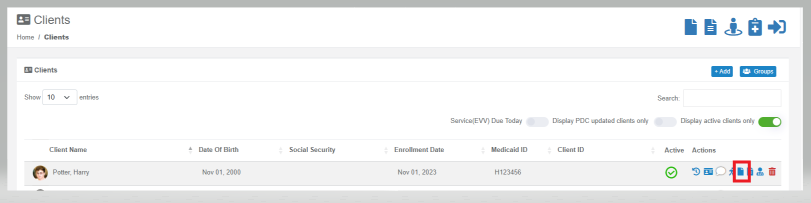
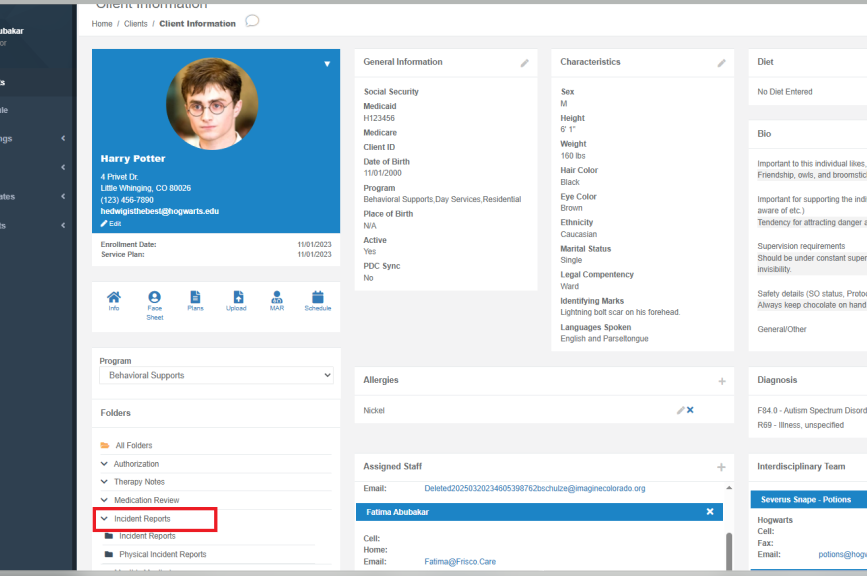
From the Client’s Profile
Open the Client’s Profile.
On the left panel, click Incident Report under the list of categories.
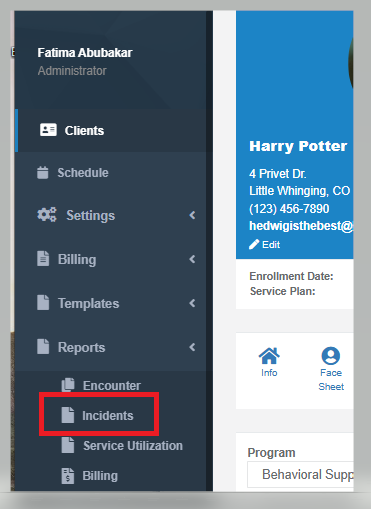
From the Menu Bar
Go to the Menu Bar on the left side of the screen.
Click Reports, then select Incidents.
Need Help?
If you have any questions or need further clarification, please don’t hesitate to reach out to our support team at support@frisco.care. We’re happy to assist you.
Was this article helpful?
That’s Great!
Thank you for your feedback
Sorry! We couldn't be helpful
Thank you for your feedback
Feedback sent
We appreciate your effort and will try to fix the article