Frisco User Guide: Manage Program
This guide will explain how to use the Manage Program page to organize programs, categories, and folders.
Step 1: Navigating to the "Manage Program" Page
- From the dashboard, locate the left-hand navigation panel.
- Click on Settings.
- A sub-menu will appear. Click on Manage.
Step 2: Managing Programs
This section allows you to view and manage your programs.
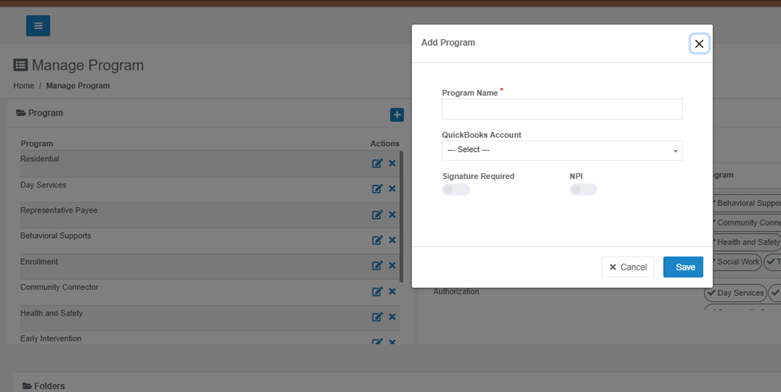
- Adding a New Program:
- Look for the button to add a new program, typically with a plus icon (+).
- Click the button and follow the prompts to add a new program name.
- Editing a Program:
- To edit an existing program, click the edit icon (usually a pencil or similar symbol) next to the program name.
- Deleting a Program:
- To delete a program, click the delete icon (usually an 'X' or a trash can) next to the program name.
Step 3: Managing Categories
This section allows you to organize programs into categories.
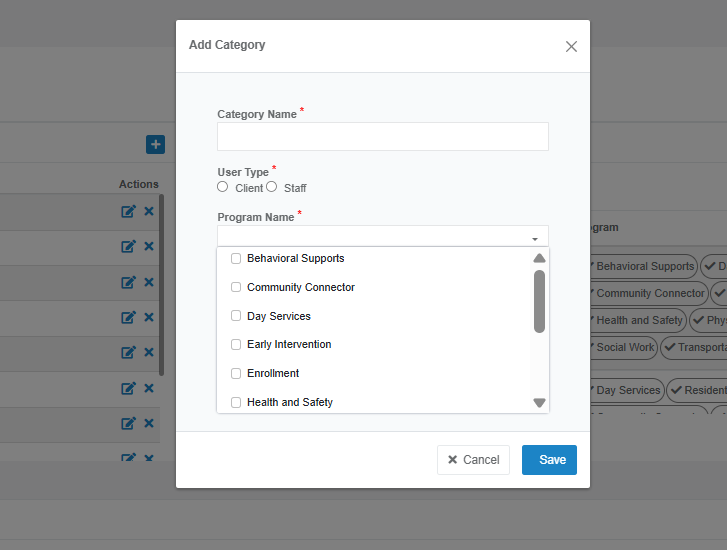
- Adding a New Category:
- Look for the button to add a new category, typically with a plus icon (+).
- Click the button to open a form to add a new category.
- Assign if the category is for what type of user, client or staff.
- Assign to which Programs the category is assign to.
- Configuring a Category:
- Programs are associated with a category and the type of users that can access them.
- Editing/Deleting a Category:
- To edit or delete a category, use the icons in the "Actions" column next to the category.
- Searching for a Category:
- Use the search bar to find specific categories.
Step 4: Managing Folders
This section allows you to create and manage folders associated with programs and categories.
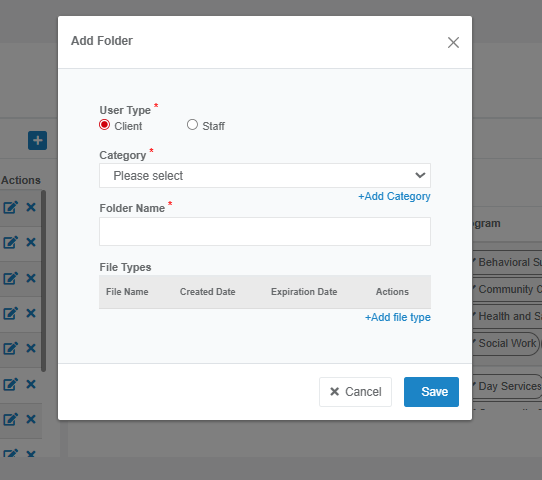
- Adding a New Folder:
- Look for the button to add a new folder, typically with a plus icon (+).
- Click the button to open a form to create a new folder.
- Assign in which specific category.
- Configuring a Folder:
- The table shows the programs, category, folder name, and allowed file types for each folder entry.
- Editing/Deleting a Folder:
- To edit or delete a folder, use the icons in the "Actions" column next to the folder entry.
- Searching for a Folder:
- Use the search bar to find specific folders.
Was this article helpful?
That’s Great!
Thank you for your feedback
Sorry! We couldn't be helpful
Thank you for your feedback
Feedback sent
We appreciate your effort and will try to fix the article