Workflow Overview
Before you can complete an encounter record, the process in Frisco should follow this sequence:
- Enter the Service into the system.
- Add the Authorization for the client.
- Create the Schedule for the service.
- Once the service has been rendered, proceed to complete the encounter notes.
Accessing the Encounter Records Page
After selecting the client from the Client drop-down menu, you will be able to view and manage encounter records for a specific date.
Adding a New Time Entry
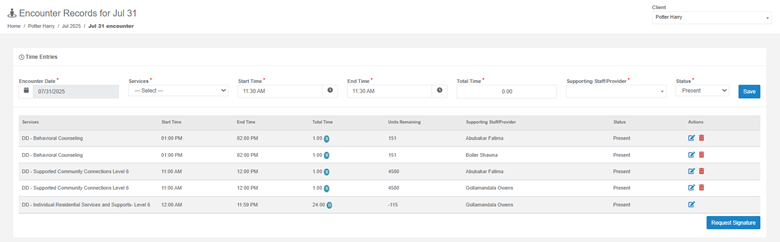
- Encounter Date
- Select the date of service using the calendar picker.
- Services
- Choose the service provided from the drop-down menu.
- Start Time & End Time
- Enter the start and end time of the service.
- Total Time
- The total hours will be calculated automatically based on your start and end time (or can be entered manually).
- Supporting Staff/Provider
- Select the staff or provider who rendered the service.
- Status
- Choose the status (e.g., Present).
- Save
- Click SAVE to add the time entry to the encounter record list below.
Viewing and Managing Existing Time Entries
- Each entry displays:
- Service Name
- Start Time & End Time
- Total Time
- Units Remaining (authorization balance)
- Supporting Staff/Provider
- Status
- Actions:
- Edit (pencil icon) – Update the time entry details.
- Delete (trash icon) – Remove the entry.

Encounter Notes
After entering the time entries:
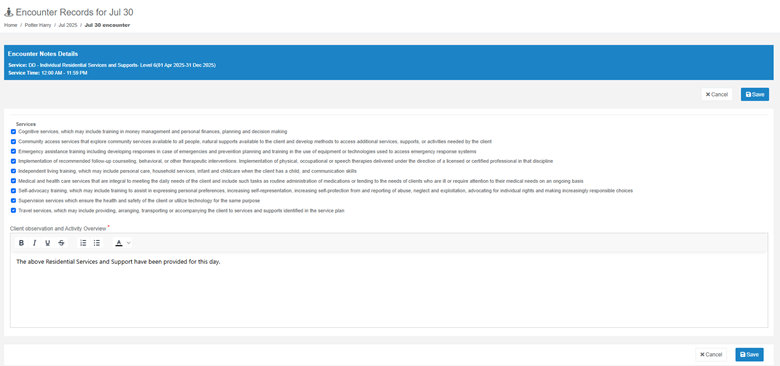
- Scroll down to the Encounter Notes section.
- Click the edit icon to add or update the notes.
- Include all necessary details about the service provided.
- Save your notes once completed.
Requesting a Signature
Once all-time entries and notes are completed:
- Click Request Signature to send for provider or client approval (if applicable).
Following the correct flow—from entering the service, adding authorization, creating the schedule, delivering the service, and finally completing the encounter notes—ensures accurate documentation, proper billing, and compliance with service requirements in Frisco.
Was this article helpful?
That’s Great!
Thank you for your feedback
Sorry! We couldn't be helpful
Thank you for your feedback
Feedback sent
We appreciate your effort and will try to fix the article