
Form Forge User Guide
FormForge allows users to create their own custom forms within Frisco 2.0. Users can design forms for clients, agency operations, or staff-related processes, and control how data is collected and submitted.
Accessing FormForge
Go to Setting then Templates then click Forms.
Click Forms to access the FormForge.
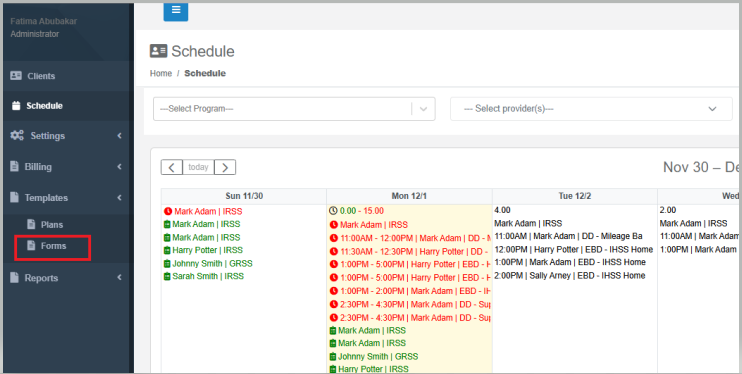
Creating a New Form
Click the Create Form button.
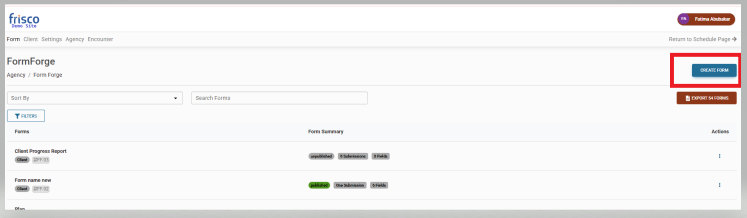
Enter the Form Name.
Select the Form Context:
Client – For client-related data
Agency – For agency-wide use
Staff – For staff-related data
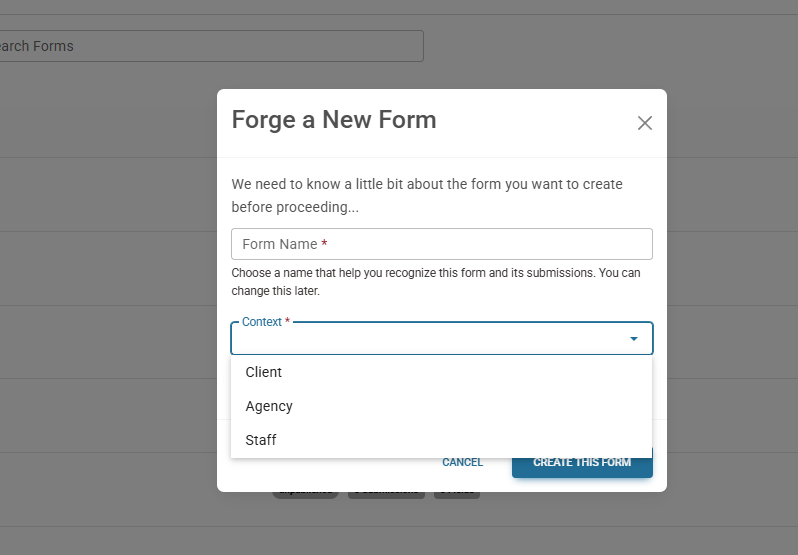
Click Create this Form.
FormForge Layout
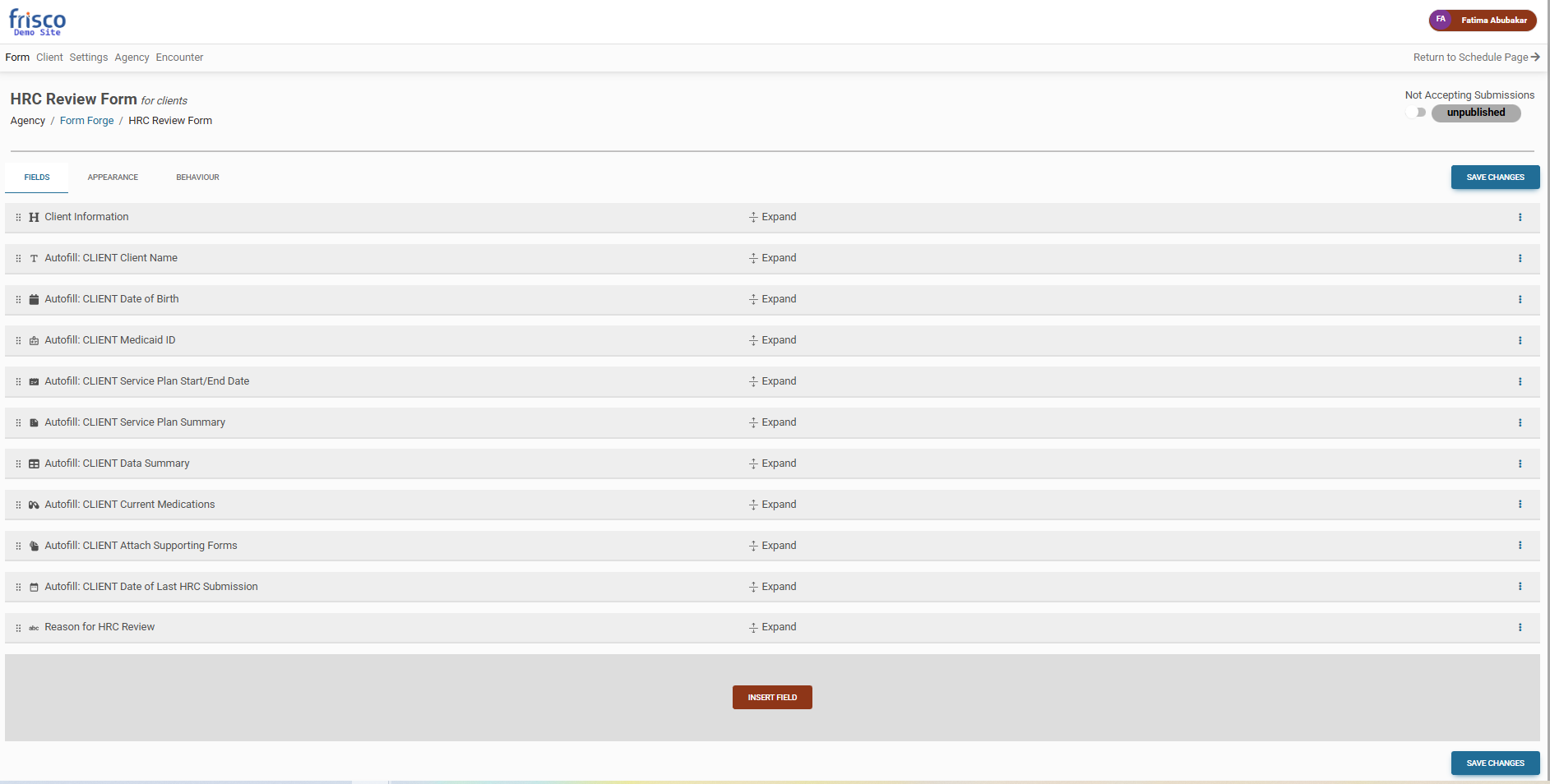
After creating a form, users will see three main tabs:
1. Fields Tab
Add and customize fields for the form.
Field types include:
Text, Text Area, Email
Number, Phone
Date, Time, Date/Time
Radio Buttons, Checkboxes, Dropdowns
Autofill fields (for Client context only) – automatically populate client information
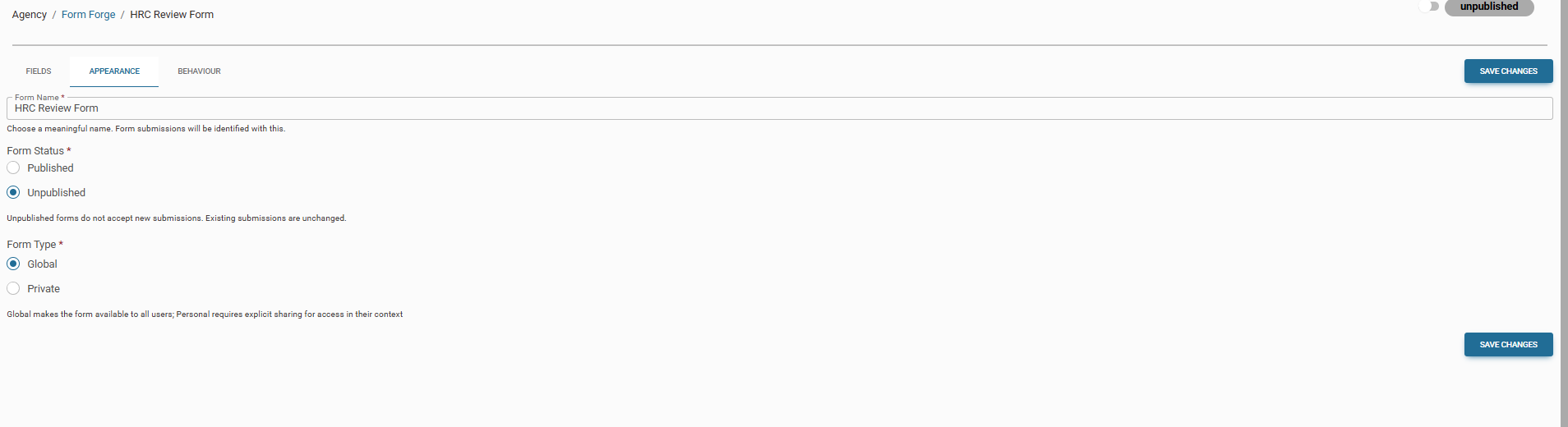
2. Appearance Tab
Form Status: Published or Unpublished
Published – Form is available for submission
Unpublished – Form is not visible to users
Form Type: Global or Private
Global – Available to everyone
Private – Restricted to specific clients or users
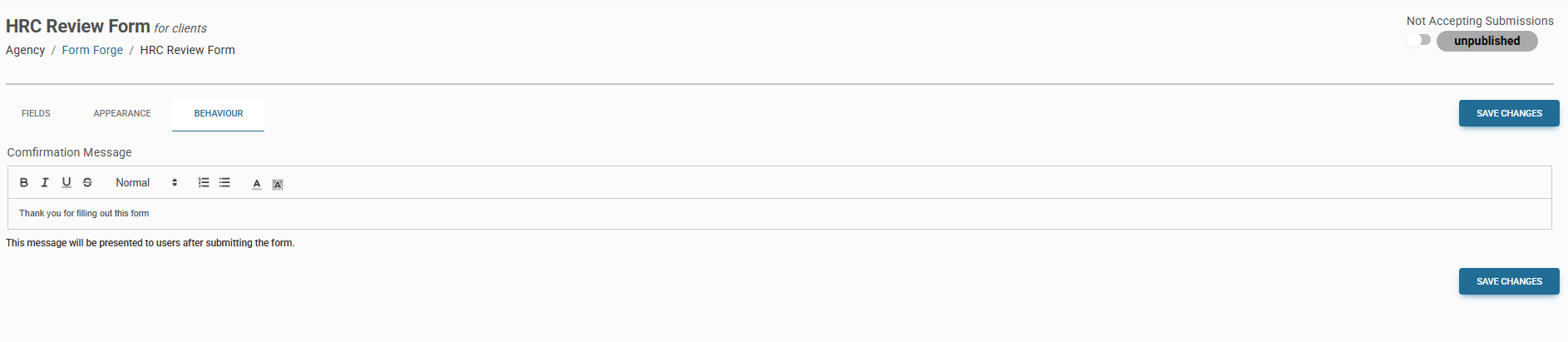
3. Behavior Tab
Configure confirmation messages after submission.
Optional: Add Signature Field so submitters can sign the form.
Saving the Form
Once all fields are added and configured:
Click Save Changes to finalize the form.
The form is now ready for submission based on its context, type, and status.
Tips
Use Autofill Fields for client forms to save time and reduce errors.
Double-check the Form Type to ensure the correct visibility.
Use Signatures for forms that require acknowledgment or approval.
Need Help or Support?
If you need further training or assistance using FormForge, please reach out to our support team at:
? support@frisco.care
We’re happy to help you get the most out of your forms and ensure a smooth experience with Frisco 2.0.
Was this article helpful?
That’s Great!
Thank you for your feedback
Sorry! We couldn't be helpful
Thank you for your feedback
Feedback sent
We appreciate your effort and will try to fix the article