
Once you log in to the system, you will be directed straight to the Schedule page. Here, you can view your monthly, weekly, or daily schedules using the tabs located at the top-right corner of the calendar.
Creating a New Schedule
- Open the Schedule Form
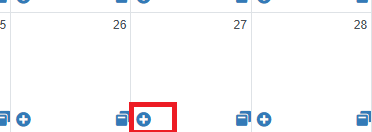
- Click the plus (+) icon on the date you want to create a new schedule for.
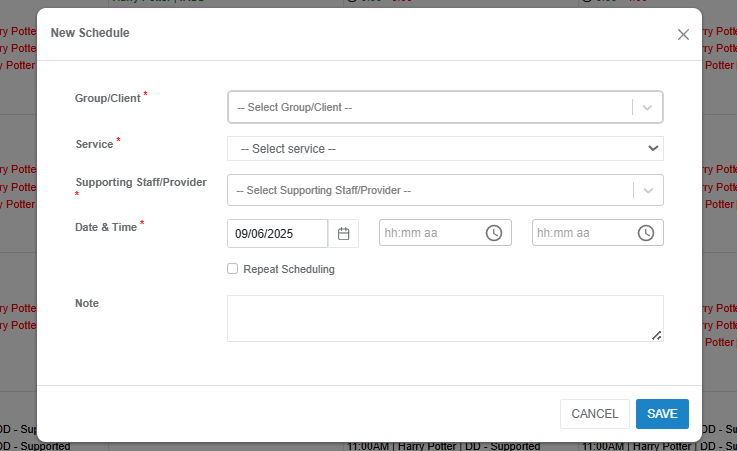
- A New Schedule pop-up window will appear.
- Fill in the Required Fields (marked with a red asterisk *):
- Group/Client
- Select the group or client from the drop-down list.
- Service
- Choose the appropriate service from the drop-down list.
- Supporting Staff/Provider
- Select the supporting staff or provider involved in the schedule.
- Date & Time
- Select the date using the calendar icon.
- Choose the start and end time for the service using the time pickers.
- Group/Client
- Optional Fields:
- Note
- Enter any additional information or instructions for the schedule.
- Repeat Scheduling
- Check this box if the schedule will be repeated (e.g., weekly sessions).
- Note
- Save the Schedule:
- Click SAVE to finalize the entry.
- If you do not want to proceed, click CANCEL to close the form without saving.
Calendar Icons
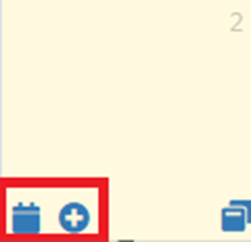
- Plus (+) icon – Add a new schedule for that date.
- Calendar icon – View scheduled events for that date.
Tips
- Ensure all required fields are filled before clicking SAVE to avoid errors.
- Use the month, week, and day view buttons to easily navigate your schedule.
- If multiple schedules are needed for the same date, repeat the process for each one.

Using the scheduling feature ensures that all client services, staff assignments, and appointments are organized and accessible in one place. Keeping your schedule up to date will help maintain smooth operations, prevent missed sessions, and improve overall efficiency.
Was this article helpful?
That’s Great!
Thank you for your feedback
Sorry! We couldn't be helpful
Thank you for your feedback
Feedback sent
We appreciate your effort and will try to fix the article